
 Home — Continuous Improvement Tools
Process Improvement Tools.
Standard Work.
Work Instructions.
Flow Chart templates.
Swim Lane Cross Functional Flowchart.
Value Stream Mapping.
Lean tools.
Yamazumi Chart template.
Time Study templates.
DMAIC tools.
Quality Improvement tools.
House of Quality QFD.
FMEA Risk Reduction.
Root Cause Analysis tools.
Problem Solving tools.
OEE.
Preventive Maintenance.
Skip to main content













Installation and Setup
Installation - Each User. Installation - Multi-user. Language Translations. Personalize Your Templates.Systems2win Training.
Quick Start Initial Training. New User Training. Training Matrix. Systems2win Leadership. Training Classes.Lean Training
Lean Training and Coaching. Lean Principles. Muda 8 Wastes. Goal - Lean Flow. Roadmap - Lean Journey. Value Stream Mapping. Standard Work. Hansei Lean Thinking. Lean Dictionary. Online Lean Training. Lean Leadership.Microsoft Office Training
Excel Training. Excel Drawings (without Visio). Excel Charts. Word Training. PDF Training. Document Storage and Naming.Support
Support.Installation Instructions
The Systems2win Excel add-in must be installed on each user's computer
Welcome to Systems2win
where our mission is to empower leaders to continuously improve
Three Types of Installation
Follow the link to the instructions for your type of installation
If you already installed the Systems2win Excel add-in, and have any questions or issues, see FAQ's below.
Installation FAQ's
Answers for just about any question — organized by phase of installation
- Download installation files
- Installation
- Faster installation for many users
- Upgrades
- Uninstall
- License Activation
- Sync
- After installation and activation
Search
Use CTRL+F
to find keywords
to find the error code
or description of any problem
you might experience
If you still can't find your solution,
request free tech support
Download installation files — FAQ's
How do I know if the Systems2win application has already been installed?
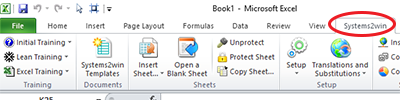
When you open Excel...
in the Ribbon Bar (near the top of the window)
if you see the Systems2win tab, then the Systems2win add-in has been installed.
Systems2win has not been installed on this computer. What do I do?
Either download the free trial version, which works only with trial (not licensed) templates, or contact your IT Department to obtain and install your licensed installation file
(that starts with "S2winInstall", and ends with the file extension .EXE)
My email or browser won't allow me to download an exe file
If your IT Dept has prevented you from downloading an exe file, then respect their desire to download and install for you.
Just be sure they follow the special instructions for how to install on behalf of another user.
Installation — FAQ's
How can I know which Version and Service Pack of Excel I am using?
Excel 2013 and higher – File > Account > About Excel
Excel 2010 – File > Help > About Microsoft Excel
What are system requirements?
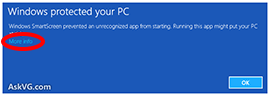
Dialog: Windows protected your PC
"Windows SmartScreen prevented an unrecognized app from starting. Running this app might put your PC at risk."
This is yet another way for Microsoft to "protect" (annoy?) their users, starting with Windows 8.
Do not click the OK button. Instead, click the tiny 'More info' link, which will open a window where you can click 'Run Anyway'.
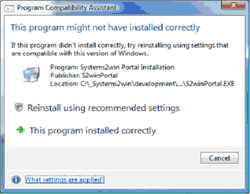
Dialog: This program might not have installed correctly
If you get this dialog message...
Just click "This program installed correctly"
It is asking for a password
No password is needed for installation — unless your IT Department has added password restrictions to install any exe file. Then you need to have your IT Department install on behalf of another user.
My computer won't allow me to install an exe file
You need to have your IT Department install on behalf of another user.
Error: You must close Excel before running the Systems2win Application installation
If Excel appears to be closed, then there is probably a background instance running.
Then CTRL+ALT+DELETE > Task Manager > More Details > Processes tab to End Task any instances of Excel.exe
Error: Not a valid Win32 application
or Error: Could not initialize installation.
File size expected = <a number>, file size returned = <a smaller number>
The EXE installation file was only partially downloaded.
Solution = download the file again.
If that doesn't work, then the problem must have been a partial upload — so contact Systems2win to re-upload the file.
The Systems2win tab does not appear in the Ribbon bar
Possibility 1) Your Systems2win add-in was installed using an Administrator password, and an important step was skipped — to run the Systems2win-Finish-Install file.
Solution: Logged in as the user,
(not using another person's Admin rights)
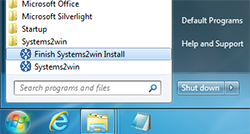
run Systems2win-Finish-Install.xlsm
either run from Start menu > All Programs > Systems2win
(as shown in the picture)
or download here
Possibility 2) Your Systems2win add-in (somehow) got unchecked or disabled.
Do the troubleshooting steps for 'menu disappeared'.
Possibility 3) Even after running the Systems2win-Finish-Install file, the add-ins are not there (in File > Options > Add-ins)
Although the Systems2win-Finish-Install file is usually easier, there are unusual circumstances when you might need to manually activate your add-ins.
Here's how to do it...
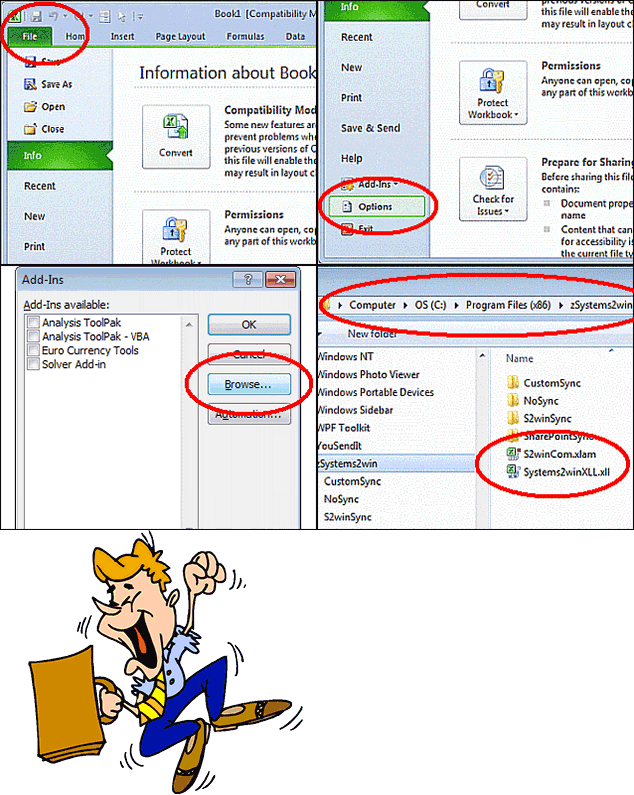
See the animated image
Excel > File tab > Options > Add-ins
Click the Go button
Select the Browse button
Browse to the folder where Systems2win is installed
(usually C:\Program Files (x86)\zSystems2win)
select S2winCom.xlam, click OK.
Then do the same to activate Systems2winXLL.xll
How to manually activate your add-ins
Where is the Systems2win installation folder?
By default, the folder where Systems2win is usually installed is C:\Program Files (x86)\zSystems2win\
In 32-bit Windows operating system: C:\Program Files\zSystems2win\
You have the choice to install the Systems2win application in any folder that you choose, but it is usually best to accept the default.
Where and how do we set up our portal — perhaps on a shared server?
Advanced set up, and personalization (for your IT Department and advanced users)
How do we install multiple users on a single computer?
After the first user has installed and Activated as usual...
Each additional user can run Systems2win-Finish-Install.xlsm
(without the need to install or activate again)
Faster installation
for a large number of users
We have a lot of users.
Is there anything we can do to make multiple installations faster and easier?
Yes. Tips for faster installation of a large number of users
upgrade
Any tips for installing upgrades?
Your Systems2win Leaders should complete every line item within the Multi-User Setup Checklist Instructions for your IT Department to upgrade your S2winPortal
What's the difference between an upgrade and an update?
Purchased Upgrade
Each time that you renew Annual Maintenance or purchase an upgrade, you receive new installation files with the latest templates, containing all of the new features that have been added since the last time that you purchased or upgraded.
Free Update
At any time, you can download the latest update, to get bug fixes and improvements to the code for the Systems2win Excel add-in.
Uninstall
How to uninstall?
IF you are uninstalling a licensed (not trial) version,
AND your license is for a limited number of seats, (not a site license for unlimited users),
AND you will NOT be re-installing on the same computer,THEN before uninstalling, deactivate to free up your Activation Key to be available for installation on another computer.
If you have Administrator permissions, simply use...
Control Panel > Programs and Features
to uninstall 'Systems2win Application'
(and 'Systems2win Legacy' if that is also installed)
If you do not have Administrator permissions, then...
1) Run RemoveSilent.exe
(logged in as the user that has Systems2win installed - not using a different Administrator account)You can find this file in the folder where Systems2win is installed (usually c:\Program Files (x86)\zSystemswin\ )
Or you can download this zip file: silent-remove.zip then extract the zipped files, and then run RemoveSilent.exe (logged in as the user)
2) Run the regular uninstall (using an Administrator password)
Control Panel > Programs and Features
If you use an Administrator password to uninstall without also running RemoveSilent.exe, then whenever you open Excel, you will get the error: The file S2winCom.xlam could not be found
Solution: Excel > File tab > Options > Add-ins > click the Go button then when you click Systems2win and Systems2winXLL, it will give the dialog that these cannot be found, do you want to remove them from this menu.
How to deactivate?
Systems2win menu > Setup > Activate and Deactivate Systems2win > Deactivate your license
Version 15: Systems2win menu > Setup > Activate & Deactivate Systems2win > Next > Deactivate my license
Version 14 or lower: Systems2win menu > Setup > Activate & Deactivate Systems2win > Internet Deactivate
If you uninstalled without deactivating, then you might need to reinstall, then deactivate.
Activation — FAQ's
Who needs to activate?
You do NOT need to activate if...
your initial trial period has not yet ended,
or if your company owns a site license for unlimited users.
You only need to activate after...
- Completing your purchase
- Requesting to extend your trial period
How to activate online?
If you have purchased your license, (you are not just extending your trial period),
then your first step is to install your licensed version. (if you haven't installed it already)
The trial and licensed installers are different. If you have the trial version installed, it will successfully activate, but you will still have the trial version.
You don't need to uninstall the trial. With Excel closed, simply install your licensed version, which will overwrite the trial.
If you accidentally activated your trial version, you don't need to deactivate. With Excel closed, simply install your licensed version, which will already be activated when you test it.
Then in the Excel Ribbon bar, select Systems2win tab > Setup > Activate and Deactivate Systems2win
then select 'Activate your license' > 'Activate Online',
then paste your Activation Key (overwriting the default trial activation key)
Your licensed Activation Key can be found in the email that delivered your installation files, and if you own more than 1 seat, it can also be found in your Systems2winInstallReadMe file.
then click the button to 'Activate'
Version 15: Click the button at the bottom of the window for 'Next' then select 'Activate my license online' paste your licensed Activation Key (overwriting the default trial activation key) then click the button to 'Activate'
Restart Excel.
Then finish installation, and test to verify installation success.
Manual Activation - Offline
If you get an error after attempting to activate online,
"Your license failed to activate"
then either:
1) you are not connected to the Internet
2) your firewall is or proxy server is blocking you from activating the easy way.
Good news
Even without IT support, you can still activate offline by following these instructions.
Version 16 and 17...
On the computer that you want to activate...
(the one that either has no internet access, or is being blocked by a firewall)
Excel Ribbon bar > Systems2win tab > Setup > Activate and Deactivate Systems2win > Activate Your License > Activate Offline
Version 15: Excel Ribbon bar > Systems2win tab > Setup > Activate & Deactivate Systems2win > 'Next' button > Activate Offline
Paste your Activation Key
The default Activation Key is for the initial trial version. You need to replace that Trial Activation Key with your own Activation Key, which might be for an extended trial, or might be your licensed activation key.
Your licensed Activation Key can be found in the email that delivered your installation files. If you followed the tip in that delivery email, then you saved your Activation Key in a text file alongside your saved installation file - in a folder where you can find it whenever you need to install on a new computer. And if you own more than 1 seat, it can also be found in your Systems2winInstallReadMe file.
Enter your Computer Key
How to get your Computer Key
aka Computer Bound Key
With version 16 or 17, you have a choice to either:
- Scan your QR Code (the easy way)
- Follow the instructions below (the old way)
On the computer that you want to activate...
(the one that either has no internet access, or is being blocked by a firewall)
We are assuming that you have already followed the instructions above to Paste your Activation Key
Now... copy or write down the Computer ID (that you will need for the next step)
Then using your web browser...
(Perhaps on on the same computer, or perhaps another computer that has internet access)...
Obtain a Computer Bound Key, using this web page:
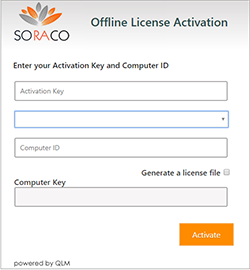
In that Offline License Activation window...
Paste your Activation Key into the Activation Key field.
Enter your Computer ID.
In the dropdown list for the next field, use the dropdown list to select either Systems2win v15 or v16 (which is also the right choice for Systems2win v17)
Click the 'Activate' button
which will not Activate the computer that you are currently on; it will generate a Computer Key
Copy that Computer Key
to your clipboard,
or (if on a different computer) to a temporary text file
On the computer that you want to activate...
Paste the Computer Bound Key, then click the button to Activate.
After successful activation, restart Excel
and then pick up where you left off with the standard instructions for installation and testing.
Activation — version 14 or lower
There is now a new activation server, so it is no longer possible to activate v14 or lower.
Contact Systems2win to get a new license key.
Error: That Activation Key has already been used
or something similar to "license already used", "That License Number has already been used"
Possibility 1) You have used all of your available activations.
Possibility 2) You are experiencing an issue with the copy protection software.
Contact Systems2win for assistance.
Bookmarks = firewall or proxy
Our firewall prevents activation of the Activation Key
perhaps with a "SOAP" or "Socket error" message, which means that the activation server cannot be contacted,
or an unknown error, which might indicate the presence of a proxy server
Things to try:
- Manually Activate Offline following the instructions above
- Add the activation URL to your firewall white hat list:
https://quicklicensemanager.com/systems2win/qlm/qlmservice.asmx
- Contact your IT Department to see if you need to enter proxy settings
How to get past our company's proxy server?
Enter your Proxy Settings:
Excel > Systems2win tab > Setup > Activate and Deactivate > Activate > Proxy Settings
v15: Systems2win tab > Setup > Activate & Deactivate > Next button > Activate > Proxy Settings
If none of the above suggestions work, what else can we try?
Sync
How to sync
How to sync the templates on your local PC with your company's master portal
(so that everyone is always using the same version master templates).
When I try to sync, I get an "unable to sync" error
Solution 1) Your IT Department may have chosen a Portal Setup Choice that doesn't support Sync.
Solution 2) Sync setup might not have been set up correctly
After Installation and Activation — FAQ's
Where can I find my Systems2win templates?
Error: You do not appear to have a valid license for this template
You are attempting to open a licensed template with a version of Systems2win that does not support that template.
Perhaps you never installed your licensed installation file?
(It won't work to simply activate a trial version with an Activation Key. You need to install the licensed version.)
Error: The file S2winCom.xlam could not be found

Possibility 1) You are trying to use a Systems2win template on a computer that does not have the Systems2win Application installed.
Solution: Install the Systems2win Add-in on the computer you are using.
Or use the Systems2win template on a computer that already has the Systems2win Add-in installed.Possibility 2) You didn't finish the steps to uninstall without administrator permissions
Solution: Follow the instructions for uninstall
Possibility 3) You are double-clicking a link from your portal (using an old browser).
Solution: To open any type of document from any HTML page, you need to follow the instructions for How to find and open your Systems2win templates
Possibility 4) The Systems2win add-in might have become disabled. (See the FAQ below)
Our Systems2win menu disappeared in Excel
and/or Error: "Your trial period has expired" (when you own the licensed version)
Other possible search terms: Systems2win is missing, can't find...
1) Restart Excel.
If this does not bring back the Systems2win menu, then...
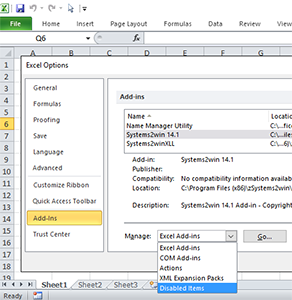
2) Perhaps the Systems2win add-in is in Excel's Disabled Items list
File (or Office Button) > Options > Addins >
in the Manage dropdown list, select Disabled Items, then click the Go button
If Systems2win appears in the list, select it, then click the Enable button
Then restart Excel.
3) Perhaps the Systems2win add-in somehow got unchecked
File (or Office Button) > Options > Addins >
then click the Go button
Ensure that both Systems2win add-ins are checked.
Then restart Excel.
If you are using Systems2win version 11 or lower, see instructions for the old version
Error: Type mismatch
Perhaps: Type mismatch (mxlApp_workbookopen)
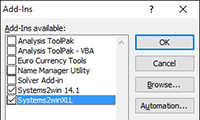
Somehow... the XLL got disabled.
Solution:
Excel > File > Options > Addins
click the Go,,, button
check the box for Systems2winXLLOr it might be in the Disabled Items:
(See the FAQ above)
I am using version 12 or higher, and can't open a template version 10 or lower
For simple templates, you can use Systems2win menu > Setup > Open a Legacy Document
but complex templates will have #NAME errors until you install the Legacy Compatibility Installer or migrate your data.
When we open a template — the formulas show #NAME? errors
Possibility 1) Calculations just need to be refreshed.
Solution: CTRL+SHIFT+ALT+F9
Possibility 2) The Systems2win application is not installed.
Solution: Install the Systems2win application (following the instructions at the top of this page).
Possibility 3) The XLL somehow became unchecked,
Solution: Excel Ribbon bar > File > Options > Add-ins > click the Go button > then check the box for Systems2winXLL
Possibility 4) Your .xls or .xlsm file was saved in .xlsx format (which strips all macros)
Solution: Open the original blank template, and save it in any of the other Excel file formats (that don't strip macros)
Note: This solution is relevent only for legacy templates version 12 and lower, because new templates no longer have macros, and are always in .xlsx format
Possibility 5) Excel somehow got set for manual calculation
Solution: File or Office button > Options > Formulas > Workbook calculation > Automatic
Possibility 6) You are using a legacy template, (version 10 or lower), and the Systems2win automation add-ins somehow became disabled.
Solution: Manually enable the automation add-ins.
Error: This template appears altered
This message means what it says, or...
- There might be an illegal character in the document filename.
For example, your document file name might include a non-letter or non-number character, such as the apostrophe single quote mark (' ), or some other character which, while allowed by Windows, might cause problems with Excel. Learn more about recommended Document Storage and File Naming Conventions
- v15 or lower, you might have deleted the 'Help' sheet or 'Template' sheet
Solution: How to repair a damaged document
- v15 or lower, you might have renamed the 'Template' sheet
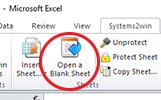
The 'Template' sheet is intended to remain hidden. It is the sheet that gets copied when you click the button to 'Open a Blank Sheet'. If you unhide the 'Template' sheet, and rename it, you will get this error. Solution: Email us your workbook. We will retore it back to a usable state, but you will no longer be able to use the 'Open a Blank Sheet' button on that workbook.
- In Systems2win version 11 or lower, this message might have been falsely triggered by Microsoft's 'Protected View'.
See solution.
I still can't find the solution to my problem
If you have used CTRL+F to search for the error code or other description of the problem, and you still can't find the solution, then that's why we offer free technical support.
Your success is important to us, too.
Also see:
Known Issues for different versions of Excel
Old and Rare FAQs
Add-in & Portal Home Page
Contents

